Experienced and Reliabile Hosting Service Provider! Switch to Cloudies365 and Save Upto 50% 

Create and Restore Sage 50 Company File Backups


Backups of Sage 50 enterprise files are crucial for disaster recovery and data security. Maintaining a regular backup of your data helps to protect your financial data and company records against unintentional deletions, corruption, and system failures.
Step 1: in creating a Sage 50 company file backup is to open the business to backed up, then choose the File tab and choose the Backup option.
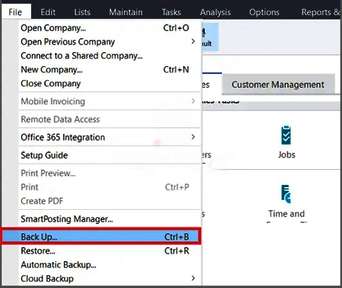
Note: Clicking the Previous Backups tab will show you the history of backups performed by this system. Clicking the Backup Company tab will take you to the location of the most recent backup. To obtain a copy of the scheduled backup that stored there, choose OneDrive.
Step 2: To include the firm name in the backup, select the Include company name in the backup file name option. To include archives, choose to Include archives in the backup. Next, press the Backup icon.
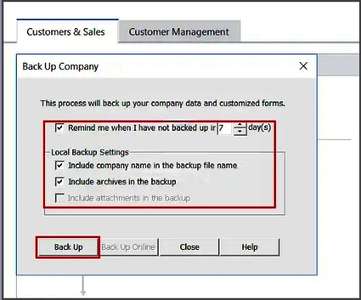
Note: To safeguard your company’s data from loss or damage at any moment, it advised that you make a good Sage 50 backup file or backup.
Step 3: The file may saved to the preferred location. Next, select Save.
Find Suitable Sage Cloud Hosting Plan For Your Business
Check Plans and Pricing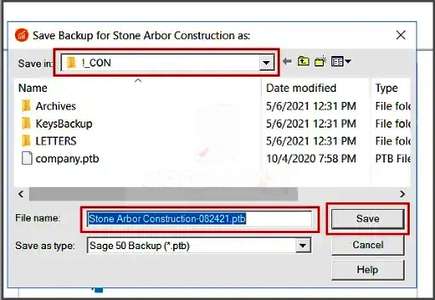
Note: The backup will saved in the corporate data location unless you specifically choose a different place. Additionally, if there is insufficient disk space, the procedure will fail.
Step 4: The system has uninterrupted storage capacity for backups. To continue with the backup, click OK.
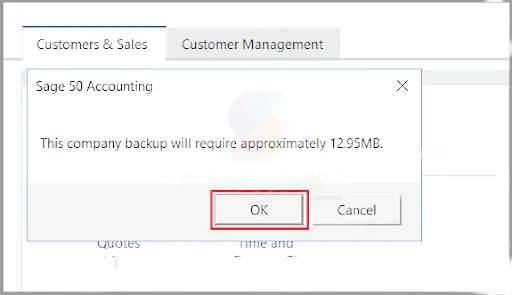
Step 5: The backup procedure will begin.
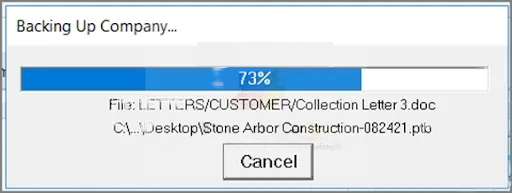
Sage 50 Backup Restored
To execute a Sage 50 restore from the backup operation, adhere to the instructions provided below:
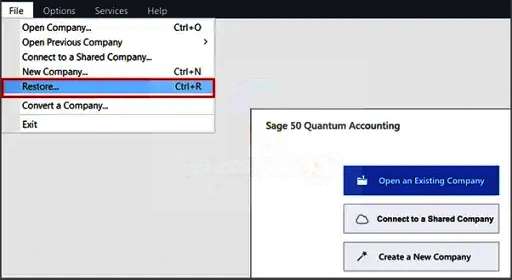
Step 1: Launch Sage 50, choose File, then click Restore. To find the file to restore, search around.
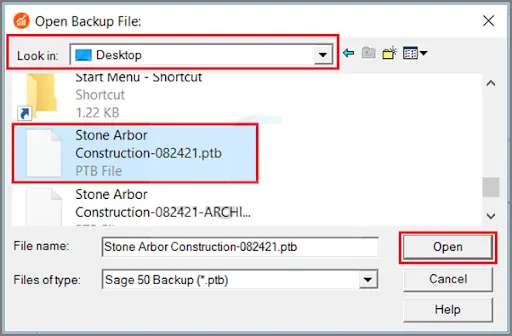
Step 2: Select the location where you saved your backup file by opening the backup file. Click Open after that.
Step 3: Click Next after selecting the option to “Create a new company using the restored data.”
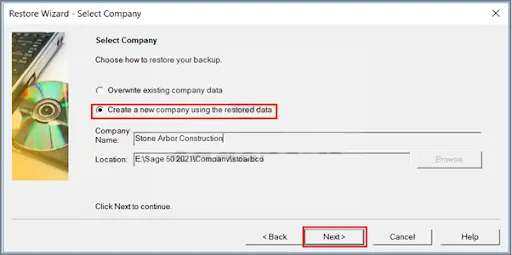
Step4: Click Next after making all of your selections.
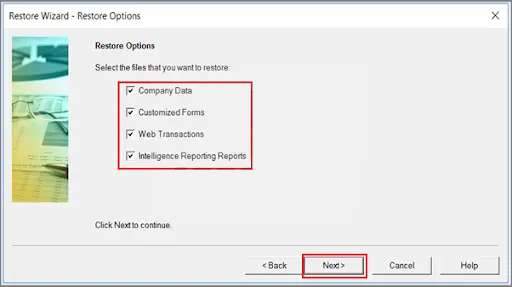
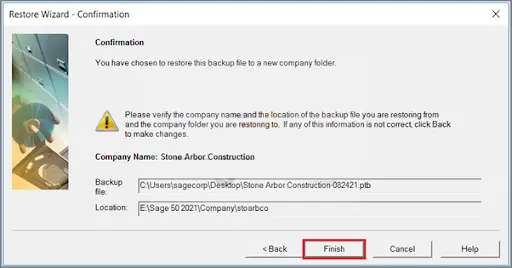
Step 5: The window provides a means to confirm the restore selections. After that, click Finish to finish the restoration procedure.
Frequently Asked Questions (FAQs)
Q. Where are the backup files for Sage 50 kept?
Ans. User options and settings determine where backup files stored. It generates backups by default in the Sage 50 corporate data folder’s “Backup” folder. The firm data folder is often located in the following directory:
C:\ProgramData\Sage\Accounts[Company Name]\Backup
Note: Nevertheless, based on the version and the installation options chosen during setup, the actual location could change. Unless you have changed the default settings, the backup files should kept in the Backup folder inside the corporate data folder.
Q. How much time does it take to get a backup file back?
Ans. The following variables affect how long it takes Sage 50 to restore a backup file:
- The backup file’s size
- The computer’s speed
- The technical details PC or server on which Sage 50 set up
- The storage device’s performance, on which the backup file kept
Sage 50 makes it simple and quick to recover backup files. Minutes can spent restoring smaller business data files. Larger firm data files or backup files on slower storage systems may need up to an hour to fully restore.
