Experienced and Reliabile Hosting Service Provider! Switch to Cloudies365 and Save Upto 50% 

How to Download and Install Sage 50 Accounting in 2024?

Sage 50, a robust accounting solution that caters to diverse business needs. Offered with a seamless download, efficient financial management, invoicing, payroll and reporting. It has enhanced operations and it helps in gaining precise insights for your business’s success. Download and Install Sage 50 Accounting 2024 which is quite a straightforward process, however, it is very important to follow the steps as displayed on the screen.
Sage 50 2024 System Requirements to Download
| Component | Requirement |
| Processor | 2.0 GHz |
| RAM | 8 GB |
| Operating System | Windows 10 (21H1 or higher) or Windows 11 with latest updates |
| Disk Space | 1 GB for installation |
| Browsers | Microsoft Edge (required for Sage Payroll & Payments); Google Chrome and Microsoft Edge (2020 or higher) for other Connected Services |
| .NET Framework | Microsoft® .NET Framework 4.8 with additional 280 MB to 850 MB |
| Display | SVGA video with minimum resolution 1280×800; Preferred 1440×900 or higher |
| Internet Access | Required for online features; 25 Mbps download, 10 Mbps upload recommended |
| File Size | Maximum 5GB for Sage Remote Data Access companies |
| Computer Name | 15 characters or less |
| Excel, Outlook, Word | Microsoft Office 32-bit versions 2016, 2019, 2021 |
| Microsoft 365 | Business Basic, Standard, Premium, or Enterprise Editions |
| Printers | Supported by Windows 10 or 11 |
| PDF Viewing | Adobe Reader Acrobat |
What are the steps to download Sage 50 Accounting?
Step 1: Go to the Sage 50 download portal: http://support1.na.sage.com/selfservice/.
Step 2: This step includes you to choose all the important products you need from the given list, if you cannot find them, then click on see more products.
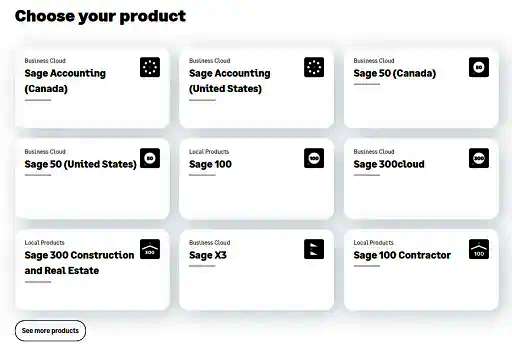
Step 3: Now choose Sage 50 (United States) Product and select your version and edition. After that click on Sage 50- US Edition: Download Portal.
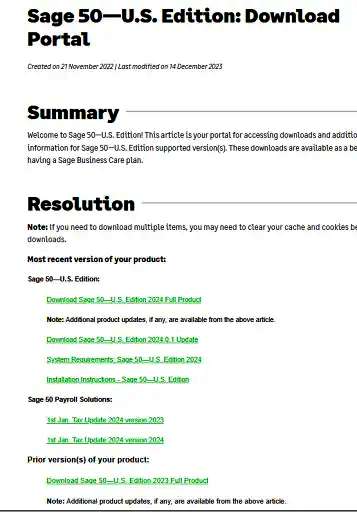
Step 4: Click on the “Download” button and the file will be .exe file. It is typically named as Sage 50.exe file.
Step 5: This last step includes you to save the file in your desktop or Downloads folders for easy access.
Install Sage 50 Accounting 2024
- The Sage50.exe file can be double-clicked to start the installation procedure.
- Once you’ve reviewed the requirements in the Install Shield Wizard window, browse for the Destination folder and click Install.
- Please switch off your antivirus program before continuing. After reading the installation instructions, click Next.
- After reading the license agreement and checking the appropriate box, click Next.
- Click Next after checking the Auto Configure Windows Firewall option in the dialog.
- Click Next after entering the Serial Number from your download notification or order.
- Choose NO and then click Next.
- Select the option “this computer is the server”, then click Next.
- Choose the installation options where you can store your file and click Install.
- Now, the installation will commence.
- Click Next on sharing company data.
- Select Company File option and then click on Next.
- Installation completed.
- Start Sage 50 on your desktop.
- Select Sage 50 Activation, Licensing, and Subscription Options from the dropdown menu after clicking on Help.
- Select “Activate Now Online.”
- Click OK after it’s enabled.
- Sage 50 is currently operative. After restarting your computer, launch Sage 50.
Some Additional Steps
- Activate your software: By opening Sage 50 and following the on-screen instructions after installation. For this stage, you’ll need your license key once more.
- Download any updates here: Sage updates frequently to address bugs and enhance functionality. In Sage 50, look for updates under the Help menu.
- Configure the data for your company: Either import an existing company file or create a new one. These choices are located in the File menu.
What are the Key Points you should remember?
To guarantee software integrity and security, download and install Sage 50 from a reliable source, such as the official Sage website.
For the duration of the installation and activation process, keep your license key close to hand.
Find Suitable Sage Cloud Hosting Plan For Your Business
Check Plans and PricingIf you run into any problems with the download or installation, you may get help from Sage support or consult the Sage 50 knowledge base.
Conclusion
If you carefully follow these instructions, installing Sage 50 Accounting is a straightforward task. The first steps involve saving the installer file, visiting the official download portal, and fulfilling the minimal system requirements. A series of prompts will appear during installation, asking you to input your serial number, accept the license terms, and examine the requirements. After installation, your company’s data is activated, updated, and set up to ensure a seamless introduction to Sage 50.
Frequently Asked Questions (FAQs)
Q. Does Sage 50 come in any free version?
Ans. Sage 50 does not have a perpetually free edition, however you can try all of its features for free for seven days. This enables you to test its capabilities before deciding to commit. Recall that in order to continue using it, you must subscribe when the trial ends. While there are free options, they might not have all of Sage 50’s sophisticated features and capabilities. To choose the greatest fit for your accounting software needs, balance your needs and budget.
Q. Can we still access Sage 50?
Ans. Indeed, support for Sage 50 desktop ceased in September 2022. There are no updates or new licenses offered, however current users can still access their data. Sage is concentrating on its cloud-based products, such as Sage 50 cloud Accounting.
Q. Is Sage 50 and Simply Accounting the same?
Ans. No, Simple Accounting and Sage 50 are not equivalent. The accounting program formerly known as Simply Accounting is now called Sage 50. Sage transformed Simply Accounting into Sage 50 in 2012 by using a numerical system throughout their whole product line. Hence, while having a different name, they are basically the same software.
Q. How do I download and install Sage 50 on my system?
Ans. Visit the official website at http://support1.na.sage.com/selfservice/ to download Sage 50. Select the edition and version that you want. Save Sage50.exe, the installer, to your PC. To install, double-click. During installation, turn off any antivirus software. When asked, enter your license key. Later, activate online in Sage 50. Install updates and configure your business information. Completed! Prior to moving your old data to your new computer, don’t forget to make a backup of it.
